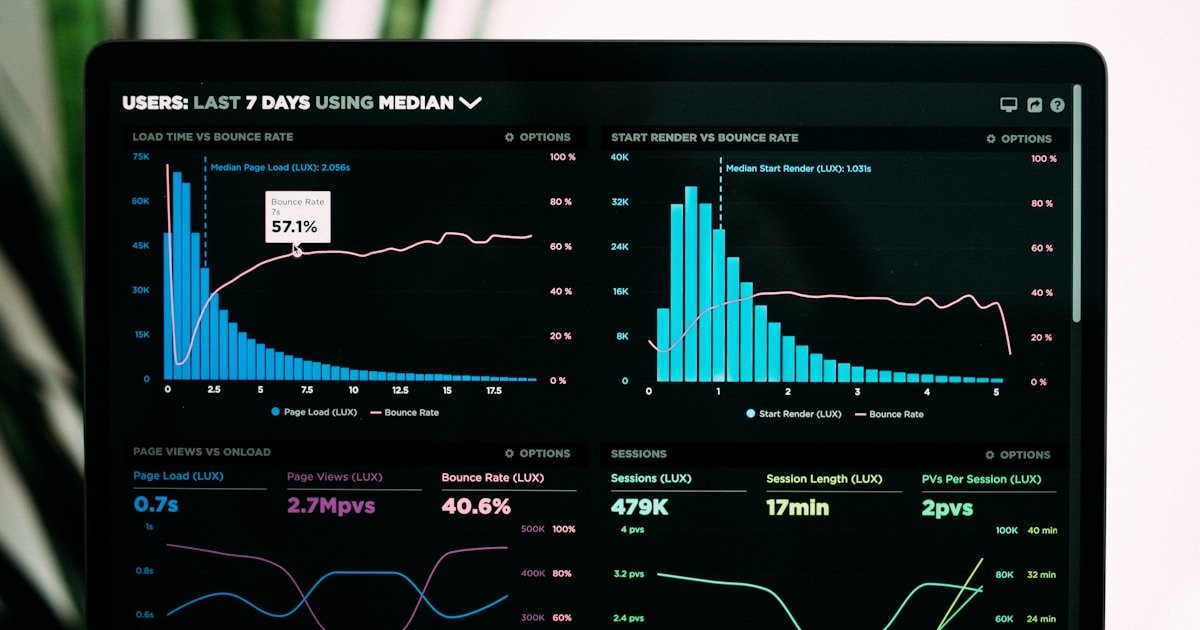
Google Search Console is the most authoritative SEO data source available — directly from Google, free, covering every key dimension of your site’s search performance. Most users check clicks and impressions and leave it there. The full tool is far more powerful. Key workflows: filter Performance data by page to find high-impression/low-CTR opportunities; use URL Inspection to diagnose individual indexation issues; monitor the Pages report for index health; use Core Web Vitals for technical priorities; check the Links report to understand your backlink profile from Google’s perspective. Search Console data should drive many of your most important SEO decisions.
Google Search Console is the most underutilised tool in SEO. Most users check their clicks and impressions, maybe look at the Pages report occasionally, and leave it at that. The full tool is a diagnostic system for every meaningful dimension of how Google sees your site — and each major report has specific workflows that produce actionable SEO improvements.
This guide covers every significant feature in Search Console and the specific ways to use each one effectively.
Search Console at a Glance
| Report | What It Shows | Primary Use Case |
|---|---|---|
| Performance (Search results) | Clicks, impressions, CTR, and average position for queries and pages | Finding ranking opportunities, CTR improvements, and traffic trend analysis |
| Performance (Discover) | Clicks and impressions from Google Discover | Understanding content visibility in Discover for sites that generate Discover traffic |
| URL Inspection | Google’s crawl, index, and rendering status for a specific URL | Diagnosing why a specific page is not indexed or not appearing as expected |
| Pages (indexing) | Indexed and non-indexed pages, with reasons for non-indexation | Finding indexation issues across the site |
| Sitemaps | Status of submitted XML sitemaps | Verifying that sitemaps are being processed without errors |
| Core Web Vitals | Field data on LCP, INP, and CLS by page group | Identifying which page templates have UX performance issues |
| Mobile Usability | Mobile-specific usability errors by page | Finding pages with text too small, clickable elements too close, or viewport issues |
| Links | External links (backlinks) and internal links as seen by Google | Understanding link profile from Google’s perspective; finding internal link gaps |
| Manual Actions | Penalties applied manually by Google’s spam team | Checking whether the site has received a manual penalty |
| Security Issues | Detected malware, hacked content, or social engineering | Identifying site security problems before they cause ranking damage |
Performance Report: The Most Useful Data in SEO
The Performance report is the most important report in Search Console. It contains data that no third-party tool can provide: actual clicks and impressions from Google Search for your specific site, based on real user queries.
High-Impression, Low-CTR Workflow
This is one of the highest-ROI workflows in SEO and it takes about 30 minutes per month. The goal: find pages that rank but are not being clicked, and fix the reason.
- Open Performance → Search results. Set date range to last 3 months.
- Click the Pages tab. Sort by Impressions descending.
- Look at the CTR column for pages with 500+ impressions. Pages with CTR below your site average — often below 3–5% for informational content — are candidates for title and meta description improvement.
- Click through to any flagged page. Switch to the Queries tab to see which specific queries are generating impressions. This tells you what users are searching for when they see this page — and whether your title tag matches that intent.
- Rewrite the title tag to more specifically match the top queries and to be more click-worthy relative to competing results.
Pages in positions 5–15 with high impression volume are the best candidates. They are already visible — small CTR improvements produce measurable traffic gains without requiring any ranking improvement. Note that CTR expectations vary significantly by ranking position, SERP features, query intent, and branded vs. non-branded traffic — use your own site’s average as the benchmark rather than a universal threshold.
Rank Tracking and Trend Analysis
Performance data allows you to track position trends for specific queries over time. Set the date range to 16 months (the maximum) and use the Compare feature to compare the last 3 months against the prior 3 months. Pages with significant position drops during a specific period often correspond to algorithm updates — cross-reference with update dates to understand whether the drop is update-related.
Filtering by Search Type
The Performance report defaults to “Web” results but can be filtered to Web, Image, Video, or News. If your site publishes images or video content, switching to Image or Video search can reveal traffic sources you may not be tracking via other methods.
URL Inspection Tool
URL Inspection is the diagnostic tool for individual page indexation. Enter any URL from your site and Google returns the crawl, index, and rendering status for that specific page.
Key outputs to understand:
- Indexing allowed / not allowed: Whether Google can index this URL based on robots.txt, noindex tags, and canonical directives.
- Last crawl date: When Google last fetched this page. If a recently published or updated page was last crawled weeks ago, it may not be reflecting your changes in search results yet.
- Canonical URL: The URL that Google considers the canonical version of this page. If it shows a different URL than you expect, you have a canonical mismatch to investigate.
- Rendered page: What the page looks like after JavaScript is executed. This is critical for JavaScript-heavy sites where important content may not be visible in the initial HTML but loads dynamically.
Use “Request Indexing” after making significant updates to important pages to prompt Google to recrawl sooner. This does not guarantee immediate recrawling but typically accelerates it for pages that are already indexed. Repeatedly submitting the same unchanged URL does not speed up crawling — use this only after substantive content changes.
Pages (Indexing) Report
The Pages report shows which URLs on your site are indexed, which are not, and why. Understanding the “Not indexed” reasons is essential for diagnosing site-wide indexation issues.
Common non-indexation reasons and what they mean:
- Crawled — currently not indexed: Google crawled the page but decided not to index it. This often signals a content quality issue — the page may be too thin, too similar to other pages, or low-value in Google’s assessment. This is not always a problem (some pages legitimately should not be indexed) but a large number of these can indicate a site quality issue worth investigating.
- Discovered — currently not indexed: Google knows the URL exists but has not crawled it yet. Can indicate crawl budget constraints or a low-priority URL in the crawl queue.
- Duplicate without user-selected canonical: Google found duplicate content and chose a canonical URL that is not the one you intended. Review canonical tags on affected pages.
- Page with redirect: This URL redirects somewhere. Usually expected for 301 redirects, but if your intended canonical pages appear here, there may be a redirect chain issue.
- Blocked by robots.txt: Your robots.txt file is preventing crawling of this URL. Check whether the block is intentional.
- noindex tag: The page has a noindex directive. Check whether it is intentional — a noindex applied by mistake to important pages is a significant indexation error.
Core Web Vitals Report
The Core Web Vitals report shows field data — real user performance measurements collected from Chrome users — for your pages. It groups pages by URL pattern and rates them as Good, Needs Improvement, or Poor for each metric.
Current Core Web Vitals metrics:
- LCP (Largest Contentful Paint): How quickly the largest visible element loads. Good is under 2.5 seconds.
- INP (Interaction to Next Paint): How quickly the page responds to user interactions. Good is under 200 milliseconds. Replaced FID as a Core Web Vitals metric in 2024.
- CLS (Cumulative Layout Shift): How much the page layout shifts during loading. Good is under 0.1.
The Core Web Vitals report is most useful for identifying which page templates have performance problems. Click through to a failing page group to see sample URLs, then use PageSpeed Insights on those URLs to get specific technical recommendations for improvement.
Core Web Vitals are a confirmed ranking signal, but Google has indicated the signal is relatively small compared to relevance factors. Fixing failing Core Web Vitals is worth doing for user experience reasons regardless of ranking impact — improvements to page load speed, interaction responsiveness, and layout stability often reduce bounce rate and improve conversion rate. As a ranking signal, the effect is relatively modest compared to relevance factors, but the UX and engagement benefits are real and measurable independently. Our technical SEO audit checklist covers how Core Web Vitals fit into a broader technical audit.
Links Report
The Links report shows external links (backlinks) and internal links as Google has discovered them. This is Google’s own view of your link profile — but it is a representative sample rather than a complete inventory. Search Console does not expose every backlink Google knows about, so the report is most useful for understanding your strongest link relationships and internal link distribution rather than as a comprehensive backlink audit tool. For full backlink research, a third-party tool such as Ahrefs or SEMrush will surface a broader set of links.
Key uses of the Links report:
- Top linked pages: Which of your pages have the most external links. These pages are your strongest link equity assets and should have strong internal linking to your other important pages.
- Top linking sites: Which domains link to you most frequently. Useful for understanding your link profile concentration and for identifying link-building relationships worth developing further.
- Internal links: Which pages have the most internal links pointing to them. Pages with very few internal links may be deprioritised in crawl and not receiving the internal PageRank they need for strong ranking.
Cross-reference the internal links data with your important pages. If a page you want to rank well has few internal links, add internal links from relevant high-traffic pages. Our internal linking strategy guide covers how to build an effective internal link structure.
Manual Actions and Security Issues
The Manual Actions report shows penalties applied by Google’s spam team. A manual action can significantly reduce visibility or remove a site from search results entirely. Most sites will never receive a manual action — they are applied for clear policy violations like spammy links, cloaking, or thin affiliate content.
Check this report when a site experiences a sudden, dramatic drop in visibility that does not correlate with an algorithm update. Manual actions are listed with the specific reason and affected pages.
The Security Issues report shows detected malware, hacked content, deceptive pages, or harmful downloads. A security issue can trigger a warning in search results that significantly reduces CTR and may cause ranking drops. If a security issue is detected, address it immediately and submit a review request through Search Console after remediation.
Integrating Search Console With Other Tools
Search Console integrates natively with Google Analytics 4, allowing you to see Search Console query and page data alongside GA4 user behaviour data in the same interface. The integration requires linking both properties in GA4’s admin settings.
For deeper analysis, export Search Console data to Google Looker Studio (formerly Data Studio) to build custom dashboards that combine Search Console data with other sources. The Search Console connector in Looker Studio is free and allows you to build custom views that are not available in the native Search Console interface.
For tools that complement Search Console data with competitive intelligence, our Ahrefs vs SEMrush comparison covers which third-party tool adds the most value for your specific workflow.
Search Console Diagnostic Workflow
When investigating a traffic drop or performance issue, work through Search Console reports in this sequence before making changes:
Performance Drop Detected
        │
        ▼
Performance Report
(Identify which pages and queries lost clicks or impressions)
        │
        ▼
Query Analysis
(Which queries fell? Branded, informational, or commercial?)
        │
        ▼
Page-Level Review
(Which URLs are affected? Sitewide or isolated?)
        │
        ▼
URL Inspection
(Is the page indexed? When was it last crawled? Any canonical issues?)
        │
        ▼
Index Coverage / Pages Report
(Any new non-indexation reasons appearing at scale?)
        │
        ▼
Core Web Vitals
(Any page groups newly failing? Field data changed?)
        │
        ▼
Internal Links
(Do affected pages have sufficient internal link support?)
Quick Troubleshooting Reference
| Problem | Where to Look in Search Console |
|---|---|
| Organic traffic decline | Performance → Pages and Queries; compare date ranges |
| Page not appearing in Google | URL Inspection → check indexing status, canonical, and noindex |
| Large number of unindexed pages | Pages report → filter by “Not indexed” reason |
| Poor user experience scores | Core Web Vitals → identify failing page groups; use PageSpeed Insights on sample URLs |
| Manual penalty | Manual Actions → check for active penalties and reason |
| Security warning in search results | Security Issues → identify detected threat type |
| Weak internal linking on key pages | Links → Internal links; cross-reference against important pages |
| Sitemap not being processed | Sitemaps → check submission status and error messages |
Frequently Asked Questions
Is Google Search Console free?
Yes. Google Search Console is completely free for any verified site owner. There are no paid tiers or premium features — everything in the tool is available at no cost to any domain owner who completes the verification process. The DNS record verification method is the most robust option as it persists even if you change your website platform or CMS.
How accurate is Google Search Console data?
Search Console data is the most accurate available source for your site’s Google search performance because it comes directly from Google rather than from estimated third-party data. Some reports aggregate or withhold low-volume data for privacy reasons, and there is a processing delay of 2–3 days. Use the data for directional analysis and trend identification rather than treating individual daily numbers as exact totals of every search interaction.
What is the difference between Google Search Console and Google Analytics?
Google Search Console shows how your site performs in Google Search — what queries your pages appear for, how many impressions and clicks you receive, your average ranking positions, and your site’s indexation and technical health. Google Analytics shows what users do on your site after they arrive — pages visited, session duration, conversions, and user behaviour. Both tools are complementary and together provide a complete picture of search acquisition and on-site performance.
How often should I check Google Search Console?
A weekly review of your most important pages’ performance data is sufficient for most sites. Check the Performance report for significant CTR or impression drops, the Pages report for new indexation issues, and Manual Actions or Security Issues if you notice an unusual traffic change. For high-traffic sites or during active SEO campaigns, more frequent monitoring is worthwhile. Set up email alerts in Search Console for critical issues like manual actions or security detections.
Why is my page not indexed in Google?
Open URL Inspection in Search Console and enter the page URL. The tool will show whether Google can index the page and, if not, why. Common causes include a noindex tag applied by mistake, a robots.txt block, a canonical tag pointing to a different URL, or a page that Google crawled but decided not to index due to thin content or close similarity to other pages. The specific reason shown in URL Inspection and the Pages report will guide the correct fix.
Sources
TL;DR Google Search Console is the most authoritative SEO data source available — directly from Google, free, covering every key dimension of your site’s search…